How To
Adding A Graphical Favorite To the Internet Explorer Toolbar
It’s time for an episode of “Little Tricks That Would Be Considered Stupid If They Weren’t So Cool.” Why is it cool? Some might say because it can be a pretty useful thing if used right, but probably the best reason I can think of is that it works on Mac OS X, but you can’t do it in Windows! It does, however, work in IE 5.1.5 under Mac OS 9.2.1. I have not been able to test prior versions of IE or Mac OS. Feel free to post a comment if you've determined lower versions that can do this.
You can drag any graphic from a Web page up to your Internet Explorer toolbar (where your back, forward, stop, refresh, etc. buttons are located) and it will stick there. If the graphic is more than about 22 pixels in height, it will scale down automatically. If it’s under 22 pixels, it should appear normally.
Now for the real fun. If the graphic is just sitting on the page unlinked, then the one you dragged to the toolbar will simply load that graphic at full size in your browser window when you click it. But if the graphic had a hyperlink, then it works just like a link in your toolbar favorites line, only with the added benefit of having a picture.
In addition, the graphic that sticks in your toolbar is not saved on your computer beyond normal caching. Rather, it is linked to the Web site you pulled it from. This means if the webmaster updates the graphic, the picture in your toolbar will change, too. This is a handy, visual way webmasters can communicate with regular visitors so they know when the site is updated.

My two graphical toolbar buttons are the ‘Joybutton’ and a handy JavaScript window popup for Google. Notice that the Joybutton, which is 22 pixels in height, shows clearly. The Google button, which was created 30 pixels tall, downsamples a bit.
For example, this technique is now offered by the popular Joy of Tech cartoon series. The webmaster selects and crops in on a tiny section of the current cartoon (such as a character’s eyes), and saves it to an image file called joybutton.gif. Before long, the updated graphic shows up in your toolbar.
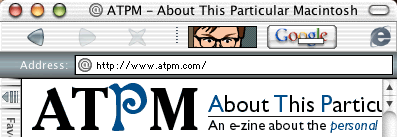
A button more than 22 pixels in height does not downsample when the toolbar is viewed by icon only. Notice the same 30-pixel-tall Google button is no longer downsampled.
Jon Gales of MacMerc.com wrote a more detailed description of this trick. In his article, you’ll find several screenshot links showing how to set up a graphical favorite, as well as how to set up the Google button to be a popup search window. On the second page of his article, he’s even provided several buttons for popular sites. In addition, I also found a site offering a plethora of icons to many well-known company Web sites.
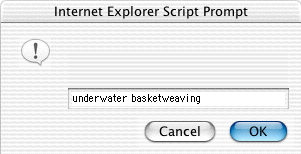
The popup Google search window produced by the Google button. It’s handy to be able to type search keywords in a fast appearing JavaScript window rather than to wait a few seconds for the main Google page to load.
An important footnote: be sure to define text in the ALT attribute of your graphic’s hyperlink. This becomes the text that appears underneath the graphical button.
 Copyright © 2002 Lee Bennett,
lbennett@atpm.com.
Copyright © 2002 Lee Bennett,
lbennett@atpm.com.
Also in This Series
- Give Alert Sounds a Little Personality · March 2012
- Create Your Own iPhone Ringtones · February 2012
- Create Your Own Homemade Audio Book · December 2011
- Upgrade to Lion Painlessly · August 2011
- Make the Most of TextEdit · July 2011
- Using the Free Disk Utility on Your Mac · May 2011
- Making Use of QuickTime X · March 2011
- Making the Most of What’s Already on Your Mac · February 2011
- Making the Most of What’s Already on Your Mac · January 2011
- Complete Archive
Reader Comments (5)
Just right click (or control click or whatever your preferred method of accessing the contextual menu is) on the graphical favorite, then select 'Delete.'
I found another collection of toolbar icons on Spymac.