Review: Sony DPP-SV55 (Printer)

Developer: Sony
Price: $349.95 (retail)
Requirements: Mac with USB and Mac OS 8.5.1 or better (but not Mac OS X) for printing from computer
So you bought a digital camera, and it’s great. You’ll never again have to worry about running out of film, or taking a bad picture only to find about it weeks later, when it’s too late to try again. Best of all, you can store all your pictures on your computer: no more hassles with albums, and the images will never fade. But what if you want to share your pictures with computer-less relatives or friends? Enter Sony’s DPP-SV55.

Dye Sublimation
Unlike a lot of “photo printers” on the market, this one actually prints photos, of the same quality you’d get if you took a roll of film to a developer. That’s because the printer isn’t an inkjet (whose tiny dots you can see on the page if you look close enough), but a dye sublimation printer, which prints continuous tones. The detail is positively stunning. After the image itself gets printed, a layer of what Sony calls “Super Coat 2” is added to protect your images. This should give them the same lifespan as a regular photograph, avoiding the problems inkjet prints have with fading after only a few years.
Printing takes place in four stages: three colors and then the protective layer. It’s relatively quiet, but certainly not silent, and takes about a minute and a half to produce a 4x6 image. (3x4 print media are also available.) Occasionally when printing, I’ll find an image has a small spot of white (I’m guessing due to an imperfection in the print paper, or a piece of dust stuck to it, since white means none of the three colors were placed on the spot), or a small hair-shaped space where one of the three colors didn’t print (possibly from something being on that particular place on the print film). These problems are both quite rare, and are almost never distracting enough that I decide to scrap the print and try again. They also are more likely to occur among the first one or two pictures I print out of a day’s printing, so perhaps it’s just a matter of a little dust accumulating on the media or getting into the print film, rather than a flaw in manufacturing.

Media
The media sizes have a ratio of 3:2, which isn’t likely to be a setting on your digital camera. (Though my camera, a Sony DSC-P1, has a special 3x2 setting for the highest resolution, no doubt designed with this printer in mind.) That doesn’t necessarily mean you’ll have to edit your image before printing, however. The printer will crop the image, a little from the top and bottom, to make your picture into a 3:2 scale image. That means if you cut it close, the printer might end up cutting off the top of somebody’s head. But you can certainly edit the image on your own so it will be cropped the way you want it to be. The printer always scales/crops the image to fit the size of the print media. The final printed image is borderless, once you break off the tabs on the sides. That leaves not quite smooth sides to your image (think, very fine perforation), but its nothing you’d notice visually if you weren’t looking for it.

As you’d expect, the printer uses proprietary Sony media; you can’t just stick any old piece of paper into this thing. At the 4x6 size, you buy print packs (retail $19.95) with 25 pieces of photo paper and a roll of print film sufficient for printing exactly that many images. The 3x4 size gives you 30 prints for the same price. A bit under a buck a print then, which is definitely more than you’d pay to develop film. But keep in mind the hassle of two trips to the developer and the advantage of being able to print only the images you want to, right on the spot…and the price of printing out a picture will seem pretty reasonable.
Online, I’ve seen print media advertised for as little as eleven dollars and change. Advertised, I say, because there isn’t any in stock, nor has there been in well over a month. In fact, many resellers seem to have a hard time getting their hands on any of Sony’s print media. Those that do have some in stock are charging retail. Last time I checked, CDW had some in stock. With shipping prices (I ordered some media from Outpost back when they offered free shipping, in late February, but they’re still out of stock, in spite of an advertised 1-2 week delivery time posted on their site.) being what they are, I dropped by the Sony showroom in Chicago and paid retail plus tax for a few packs of print media.
Printing—Standalone
The printer itself has two slots in it intended for digital camera media: one for (of course) Sony’s proprietary “memory stick” (in Sony’s documentation, they always put it in quotes), and one for a PC card. So if you have SmartMedia or CompactFlash, you can get a PC Card adapter and you’ll be all set. There is also a USB port (though a cable is not included, which I feel is pretty cheap on Sony’s part) for connecting to your computer.

When you insert media into the printer, you can tell the printer to print all images it finds, or just those selected with a standard DPOF marker (again, my Sony camera supports this; I don’t know how many others do, so check your documentation), which can be put on a picture by a digital camera. Once you’ve made that selection, hit Print and let it go. Simple.
Printing—TV
If you happen to have a TV nearby with the right kind of input jack (my five-year-old TV doesn’t have one, but my two-year-old VCR does; Sony’s manual just calls the cable a “Video connecting cable.” An old VCR manual calls it a “round (75 ohm) connector.”), you can connect the printer to the TV to afford you a variety of printing options, such as making a card or calendar, or printing the date (of printing, not the date the picture was taken) on the image. I don’t really understand the target market for these doodads; it seems to me they would appeal to people without a computer, but who would buy a digital camera if they didn’t have a computer?


The interface for the TV screen functions is, to me, much more confusing than an image editing program on my computer, though that may just be because of what I’m used to. I had to consult the manual several times in order to get connected (via my VCR) and to get a calendar picture printed out. The process involved going through no fewer than eight screens, and it’s quite slow, at least by computer standards. Also, since TVs have downright awful resolution, previewing doesn’t give you as clear an idea as you might want of how your picture will come out. All that said, I am happy with the results.

Printing—Mac
Support for printing from a computer, at least a Macintosh, is positively abysmal. I’ve seen many reports on the Web of borderless printing not working when printing from a Mac, and I’ve confirmed that with my own experience. (About 1/8 of an inch of white space is left on one side.) Also, when printing from a computer, none of the automatic cropping takes place to account for images that aren’t 3:2, so if you don’t crop your image to a perfect 3:2 ratio, you’ll again have borders.
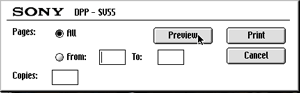
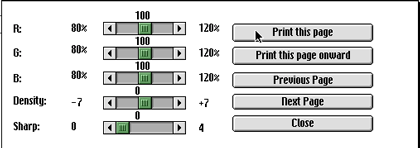
The look-and-feel of the print dialogues is decidedly Windows-like, and worst of all, the “Print” buttons visible from “Page Setup” and from previewing the image do not work at all: you have to select “Print” directly. The readme file included with the print software is written in very poor English, surprising given Sony’s high-profile presence in the English-speaking world. All in all, its pretty clear that Mac printing capability was an afterthought, and not tested adequately before sending the product to market. The good news is that these problems could all be fixed by Sony updating its Mac printer drivers…but will they?
Conclusion
Overall, I’m extremely satisfied with the Sony DPP-SV55. I bought it to print out digital pictures, and it performs that function beautifully and easily. The TV interface gives some nice basic options for printing your images, if you’re willing to wade through the numerous screens. My only major complaints about this device are the relative unavailability of print media and the poor support for printing from a Mac. Regardless, image quality is the most important characteristic of a photo printer, and in that area, the DPP-SV55 really shines.
 Copyright © 2001 Paul Fatula,
pfatula@atpm.com. Reviewing in ATPM is open to anyone. If you’re interested, write to us at reviews@atpm.com.
Copyright © 2001 Paul Fatula,
pfatula@atpm.com. Reviewing in ATPM is open to anyone. If you’re interested, write to us at reviews@atpm.com.
Reader Comments (280)
George
- Download your pictures to a computer and use your favorite editing software.
- Attach the DPP-SV55 to a TV set and edit all your pictures before you print them.
Any other questions on Digital Photography and printing? Try the DP Review site.Ground Service Shipping: $6.95
Handling Fee: $2.95
Sales Tax: $1.28
TOTAL: $23.19 Price per sheet ~ 93 cents It's cheaper to go to Circuit City and not have to eat the handling fee.
I have used this version on in Mac OS 9.2.2 under OS X 10.1.2's Classic environment. So far it has been working. So I am posting my effort for fellow Mac owners to enjoy. It is available at the URL below. Please keep in mind that I just copied over much of the English localization from the older English version of the software so I don't want to be responsible for the bad grammar in some of the alert messages.
Tron
http://www.riverwatcher.com/DPPSV_Driver.sit
My thinking is that the Mac and the PC use different gamma settings. Since this printer is geared mostly for the PC crowd, it may default to the PC gamma standard.
BTW, I'm a graphic designer and color balance is very important to me. I never print a digital photo without color correcting it first!
John
Perhaps if enough people call/e-mail them, they'll upgrade the status from consideration to development.
I, too, have the same problem. Most images are VERY hot. I tried to use a Pantone profile but it only seemed to make it worse. I get the same problems using Photoshop or printing directly from the printer (via the memory stick). Either way, I have to waste at least 1 sheet to get the color. I don't think it's supposed to be this difficult. For imaging, I am using the Sony F707 camera. It's all Sony! I think I'm going to give their tech support a call.
-Peter
Regarding the "too much red" problem: please, no one take this as an authoritative response, but a recent experience (and solution) of mine may have some bearing.
One of my day job responsibilities is laying out an eight-page, four-color newsletter five times a year. Historically, we've sent all our photos to a service bureau for scanning. In the past year, after we bought a Nikon Coolpix digital camera, we gradually began using more and more digital photos. As I prepared these digital photos for our newsletter, I naturally did some color adjustments on them and noted that the matchprint proofs had them looking sort of reddish. So, I just began intentionally making them look a bit bluer than I normally would when I did my color corrections. This, for the most part, solved the problem.
For the most recent issue (the first one for 2002), we've made the plunge from doing just some color photos and mostly black and white photos, to 100% color photos and no black and whites. Since there's no way we could afford to have the service bureau do color scans on all those photos, it fell to me to take a crash course in properly scanning images on a brand new flatbed scanner. Ultimately, the scans came out reasonably well, but still reddish. During the press check, we actually had the press operator tone down the magenta ink to compensate.
Yesterday, I finally had the service bureau do what I'd been intending to have them do after we got our new computer system--perform a calibration on my monitor and scanner and schedule to periodically update the calibration throughout the year. When they finished calibrating my system, my monitor certainly (at first) seemed quite dim and had a sort of muddy red tint to it. But I recalled seeing that same cast on the monitors that were used by various professional image editors I'm acquainted with, including the man who used to do our scans that always turned out amazing. Using my computer the rest of yesterday and all day today, my eyes VERY quickly acclimated to the color cast. In simplistic terms, this type of color cast compensates for the fact that photos come out too red (the better term is "too warm") on the printer or press. When you color correct the image, your eye will want to cool down the photo on your monitor, just like you want to do on the "too red/warm" prints you're getting. Hence the entire point of calibrating the monitor--making it more accurately represent what you're going to get on your dye-sub printer (or commercial press).
So what am I trying to say with all this? Again, I'm not intending this to be an authoritative answer, but I have to wonder if those of you who get reddish photos are experiencing the same problem I was. It turns out that most computers and monitors are defaulted to a color temperature of 9300 degrees. This is what nearly all of us are accustomed to. Unless my dyslexia is kicking in, 9300 degrees is daylight color temperature. It's very pleasing to the eye. Unfortunately, it doesn't accurately represent how a digital photo will reproduce on a four-color device such as a commercial press or a dye-sub printer. For that, as I learned yesterday, a color temperature of 5000 degrees was the norm. But before you rush out to configure your display settings down to 5K, you should know that there's more to it than that. Just setting down the color temperature makes your monitor look badly reddish--overkill for proper color correction. There are a lot of aspects to calibrating the monitor, which is why I had the service bureau do it instead of trying to muddle through myself.
If you don't want to pay a professional service bureau to calibrate your screen, you'll have to do some research on how to do it yourself. To do it as best as possible, you'd have to invest in one of those devices that attaches directly onto your screen by a suction cup, and reads color values so the calibration software can do its job.
Here's the Readers' Digest condensed version of all that: Calibrate your monitor to a 5000 degree color temperature environment to make your photos on the screen be closer to what you'll get on a four-color output device. You'll see the reddish cast on the monitor first--before you waste a sheet of photo paper--and be able to color correct the picture before you print it.
before I do. I have a Sony Mavica FD-92 (MVC-92). What I was wondering is, has anyone used this camera and this printer, and does the printer give good prints, or will I be limited by the 1.3 MP or 1.6 MP (interpolated) setting for this camera. I just want to know before I make such a big purchase. I have been very happy with this camera for taking pictures and storing them to CDs for my digital photo albums, but my wife wants to start printing things out and putting them in albums, and inkjet printing yields poor results. Any insight would be much appreciated.
I think the Sony dye-sub printers still hav an edge over the inkjet printers (which are getting very good with the right printer/ink/paper), but aren't quite as good as traditional photography. It is very very close, though.
I bought the F-707 which has about 5 MP, but I never use the full resolution of the camera (16mb per picture at full resolution). I am mostly satisfied with the DPP-SV55 that I purchased. The quality is great and it's nice to only print a picture that I think is excellent. Maybe it's the settings I'm using to take the pictures, but most images I print seem to be a little high in contrast. I have worked with color printing before and know that it is MUCH more involved than B&W printing. Anyway, if you can afford it, it's a nice compliment to the camera. Or, get it from Circuit City and if you don't like it, return it!
-Pete
It might be the case that the poor results from printing to your inkjet are because of the small resolution of your camera, not because of the inkjet. Try downloading a few 2 or 3 MPixel images (image galleries for cameras reviewed on DCResource are a good source for these) and see how they come out on your printer. The DPP-SV55 does print better images than an inkjet, but you might find inkjet prints acceptable for your purposes if you give it better images to work with.
Also, for all of you looking for print media, eBay has it for $160 for 10 packs.
There are expiration dates printed on the boxes the print media comes in, usually about a year away. Exactly what, if anything, happens if you let the print film become too old before using it, I don't know, but buying yourself a ten-year supply might not be advisable in light of this.
Every printer suffers from the problem you're getting at; what happens when ink cartridges for a particular inkjet or laser printer go out of production? (Sure, it's 10 years old, but I'm having a really hard time finding cartridges for my Stylewriter II, and print ribbons for the even older ImageWriter.)
Please note this review is of the older DPP-SV55, so results with the SV77, which I think is the current version of this printer, may vary.
Also, regarding your camcorder, not only does the sub-1MP resolution impact quality, but the stills will have some of the same interlacing that regular video has. They've gotten better at compensating for it, but it will never be as clear as a true digital still camera.
Also, I'd take the rather large volume of comments posted here asking for help as evidence that Sony isn't doing a good job supporting the printer...if they were, people would get answers from them rather than by posting comments here. Meanwhile, I'm happy to help when I can, and I'm greatful to other readers who have helped others out with problems they've posted.
Thanks.
For those of you still hoping to find current/recent drivers for the SVxx series, my 2+hours of spelunking into any remotely-English-speaking Sony site turned up one that actually had a useful FAQ and download area: http://www.css.ap.sony.com/ (Asia Pacific)
- Derek
I purchased the now-discontinued SV55 for $349.99 at Sears with a $50.00 from Sony rebate, instead of the SV77 (they will only be selling the SV77 now) which cost well over $150.00 more. The reason for this was that I was unsure whether this printer was of any value. I have been disappointed in the past with others. After using it for over 3 weeks and using 30 packs of prints (the paper is available everywhere), I have to say that I am so pleased with the results that now I want the SV77 (I believe the only difference is the built-in LCD screen). I connect the SV55 to both to my Mac G4 Quick Sliver (933mhz) using Classic 9.2.2 under OS 10.1.5 (Mac users MUST download new drivers - see the end of this message) and to my Sony VAIO Pentium III (600mhz) with XP and I will say that this is one time that I rather do multi-media on the PC than on the Mac. I wish they would come out with a Mac OS X driver.
I have been printing very old b/w photos (circa 1940s) that I scan in at 1600 dpi. The results are stunning. They look much better then the originals themselves. I also print from scanned 35mm color slides (circa 50s/60s). Again, very impressive--the same with printing from scanned color photos, b/w and color 35mm negatives, APS prints and even from Kodak Photo and PictureCDs, and, of course, from from my Canon digital--all looking as good as any I have previously had professional photo labs do. Most of the time, I use thh SV55 in the computer mode and almost all of the time I do NOT touch the photos in any application. I'm sure if I spent some time in Photoshop or such, I could even improve upon the results.
Now I'm getting hooked on using the printer stand-alone with the memory cards (Sony Stick or MM cards) printing calenders etc. which is the reason that I want to upgrade to the SV77.
As far as some people having problems (installing, jams, etc.), the only original problem I had was doing the install on my Mac. It froze my machine and I could not figure the problem out until I did a web search and found this wonderful site and found out about the new drivers for OS 9. I have NOT had one other single problem since.
I would like to say that not only this printer but any product on the market will have problems if we are not educated on the product properly and don't have the necessary support which Sony totally FAILS on for this product (the instructions for the SV55 are the worst I have ever seen) and Sony fails on this for most - not all - of their products they sell. But, in general, I do like their products and keep on buying them. As with any mechanical device--and this IS very much a mechanical device--if the paper or cartridge is mishandled or not properly installed, problems will develop (as they say - everything is made out of plastic nowadays, that's why we can afford them). Instructions and hints from sites like this one should be followed. Treat not only this printer but all hardware with respect. Keep them dust and dirt free and this includes the papers, inks, memory cards, etc. Don't force anything that doesn't move with ease. Make sure you are doing it the proper way.
Some final words:
Mac OS 9.2 users - you MUST FIRST download the new drivers at the site below else you will FREEZE UP your machine trying to install the drivers that came with the SV55.
PC users - there are new drivers (XP included) at the same site below.
Download updated drivers from the Sony Europe Support Center.
Just an observation...you certainly might do some tests to be certain, but I feel quite confident in saying that your 1600dpi scans are overkill, unless you're doing enormous amounts of enlarging. Sure, scanning slides at 1600dpi and enlarging them to the printer's standard photo print size effectively lowers the dpi, but I think you were talking about old black and white prints that you were scanning at 1600dpi. Those file sizes must be huge!
If you're adventureous (and I suspect you are), try scanning a photo at just 300dpi and print it at 100% size. I'd just about bet you'll be just as happy with the results. And, your computer won't have to spend as long spooling the print job and you won't be filling up your hard drive with saved photos as quickly.
I tried to reach Sony to ask, but it is impossible. An omen, perhaps?
I do have a small problem. The first page of each media pack I have used prints a yellow stripe down the right hand side of the photo. Then it promptly misfeeds the second page. Everything is fine from then on. All of the other pictures print perfectly, even the misfed page that I put back through. This has happened on 4 packs straight. Any ideas?
(I am using the SVM-25LS pack from TechDepot. Date of production 2002.3)
By the way, as a computer systems professional, I am appalled at the poor (missing) customer support from Sony.
My camera comes with a utility that lets me download pictures to my camera, so I can still crop/edit my pictures before printing them directly from the PC card.
Rich
I checked all previous messages and can't find any (besides mine) that mention the red push problem is fixed/reduced by printing directly from a PC card adapter/memory stick. I also had other USB printing problems (like aborted printouts that wasted ribbon and paper) which are no longer present with the PC card method.
I certainly don't blame OS 9.2 for the problem, I blame Sony. Sony simply doesn't support its computer products. I wish someone else would come out with a 400 dpi dye sub printer. So far, Sony is the only one.
The only reason I had to boot back into 9.2 was to print on the Sony. Now I can stay in OS X.
Peter
I guess its obvious. Use Sony paper.
I own HP Photosmart and, after an initial overview of the DPP-SV55, I still give credits to the HP 100 for the following:
I still have high marks for the Sony DPP, just have to wait and see, when I buy a new paper/ribbon pack. So, hats off anyway.
P.S. I click on Sony DSC S-70 3.3 Megapixel.
I bought this printer because I gave the same 2MP image to my boss (who owns a DPP-SV55) and another guy at work (who owns an HP Photosmart 100). The Sony was better in most respects (the HP showed just a hint of banding) except in the dark areas of the picture. With the default color saturation setting that my boss used, the detail in the dark areas of the picture didn't print. It was just black there, where the HP picked up MUCH more detail.
One thing to keep in mind, I tried the printer with several digital cameras at Best Buy. The print quality on this printer is SO good that the digital camera you use has BIG impact on photo quality. I tried a 1MP, 2MP, and 3MP Sony and a 2MP Kodak camera. All were set to best picture quality/resolution. I have to say the prints were actually all disappointing off of the Sony cameras. There was a lot of picture noise. However the print from the Kodak camera was amazing. Remember that for 4"X6" prints, you only need 2MP. So, the Kodak 2MP and Sony 2 and 3 MPs I considered identical in resolution for purposes of the 4x6 print. From the prints, it was apparent that the Kodak camera had superior image processing/capturing capablilies. So, if you are seeing not so great prints, consider the possibility that the printer is bringing out the shortcomings of your camera.
Drivers for the Sony digital printers, including the SV55, are available for download.
I see it is on clearance at Best Buy for $229. Do we know if the whole family is being discontinued or just the least expensive model? Is there going to be a new least expensive model? If it is the whole family, I would be worried about paper.
I tried sending 7-8 photos to 2 different online digital photo printers and none of their prints showed the dots.
Am I expecting too much from the Sony printer or do I perhaps have a defective unit?
Any help would be appreciated. Thanks!
--Tim
This does seem odd. What mechanism are you using to connect to the printer--direct from a media stick or connected directly to the computer? If it is from your computer, you may want to check the driver and the software that you are using to print the photo. Make sure that you are not losing resolution along the way. Also, is your camera definitely set at the 3.2 resolution?
Kathy
Thanks for responding. The results are worse when I print while connected to the computer, so I always print by copying to the memory stick and then having the printer itself process the image for printing. And yes, I'm sure I'm at the 3.2 resolution. I checked that several times.
I suppose that you get really good prints.
What you describe definitely doesn't sound like the quality I get out of my SV55. It could be that the printer is defective or that there's a problem with the media. Make sure you're using the correct Sony branded print pack for the printer. Perhaps buy a new print pack and try using that to rule out some sort of defect in the printer film/paper. After that, if you're still having trouble, you probably have a defective printer.
So now I'm pleased with the printer. Thanks much for those who responded to me!
(I don't know if the SV55 has an "Auto Fine Print" option.)
Thanks.
Hope this helps.
Kei, 1.3MP won't be worth the printer. I saw a 2.1MP printout and it looked great, but a 3.3MP or higher really nails it.
Thanks.
Dye-sub printers, on the other hand, lay down the ink in a much higher quality manner...simulating an actual printed photo. Defects (including low resolution photos) are much more visible on them. I said earlier that a great TV picture looks pretty nasty when you video capture it and look at it on your computer screen, because the computer screen is so much higher quality than a television. It's sort of the same when you take a low resolution picture and print it on a dye-sub printer as opposed to an inkjet.
Jim
Larry
1) My camera is the Fuji A303 and, of course, it doesn't match the printer as a Sony camera would and I have to resize to 2466 X 1664 pixels @ 403 dpi in Photoshop so that I will get 4X6 borderless prints. I was thinking about buying an adapter for my XD memory pack, i.e. the PC Card adapter so that I can print directly from the printer. My question is, how would I get full 4X6 borderless prints? is there a resize feature for my mis-matched Fuji pictures via the printer?
2) I printed a scenery shot and found that the clouds were all white and had no shading to show definition. The picture on the computer did show nice clouds with shading. My son printed the same picture on his HP 100 4X6 printer using his HP PhotoSmart software and the clouds looked great with shading, just like the picture on his computer. No enhancements were done to the picture before printing in either case.
Any ideas on either of these questions? Thanks.
1) The printer will resize the pictures automatically to fit the 4x6 borderless format. What it does is crop the shot to make it fit the 2:3 ratio. Of course this can result in cutting off the top of someone's head, etc., depending on how you took the shot, so if there's something important at the extreme top or bottom of the picture, you'll likely want to crop manually.
2) I experienced that problem only once where I got some plain white with no definition. I never played around with finding a solution, so I don't have any suggestions. But anyway, it's not a defect with your particular printer or print pack. If you do find a solution, please post it here for the benefit of other readers.
Manny
Regards,
Manny
Larry
P.S. - I bought my SV55 new, on clearance, from Staples here in PA for only $101! A great bargain. Now, if I could get that error message about the printer not being connected to go away!
Probably like most of the owners of this printer, I mainly print a few pictures here and there--in my case either from my iBook or directly from a Compact Flash card. I can deal with the lack of Mac OS X compatibility for now.
In October, I decided to put the printer to work for me. I took my iBook, printer, camera, and tripod to a Halloween party for kids, took pictures of the costume contest winners, and gave them to the kids/parents to take home. I created a template in Photoshop with a white box and text at the bottom and just imported each picture into it. Everyone was amazed by my setup. I think I coined the phrase, "The Polaroid of the 21st Century." Putting the pictures in those black paper frames from my local camera shop helped too.
So, I thought I'd give it a shot again at a Christmas party this past Sunday. I'd do "Pictures with Santa" for the kids. Everything was going like clockwork, albeit slow thanks to the 90-minute-a-print-wait, until after about the 35th print. Now, the printer was spewing out photos non-stop (except for the cartridge/paper change at the 25-print mark) via USB from the iBook. Around the 31st print, there was a faint white line running vertically from top to bottom (portrait orientation) and it was more defined with the next 3 prints. The printer attempted the next print, got through the yellow pass, spit out the yellow picture, and completely locked up. I had to pull the plug to shut it down.
My guess is it overheated. I let it sit for a few minutes, powered it back up and was able to print the last 3 pictures with no problems and no lines.
So here are my questions:
I guess that's it for now. I've got to finish printing out my family's photo Christmas Cards and get them in the mail.
On my way back to look at it, he made the comment that maybe it could be had for $75. I checked it out and it was all new ... not a return. So, as he was placing it back in the box, he said, "Maybe we'll accept an offer." I said, "I'll give you $50 and you don't have to try to get it back into the box." :-) He said, "I'll take $50 and I'll still place it back in the box." I used a $25 gift certificate and my own $25 at the checkout.
I asked him what paper it takes, not knowing what I know now. He said, "We don't have it in stock, but I can order it and I will give you $10 off your first order." So, I made my way home and decided to see just what kind of deal I had got. What? $50 off if you buy a Cybershot and the SV55? The biggest cost was the dang USB cable that cost me $20! LOL.
By the way, CompUSA has the printer for $180.
All better now. Back to printing.
Has anyone edited an image then saved it back to the memory stick and tried printing the edited image directly from the memory stick?
I'd like to add a logo to each photo I print. Perhaps this would work?
I've been looking into this issue a lot and want to add my two cents in for the "will a 300 DPI dye-sub look better or worse than a 4800 x 2400 DPI inkjet?" question.
The short answer, although there really isn't one, is that you are not really comparing dots to dots when you look at resolution. Let's say we use the term "dot," anyway. A dye-sub printer can print out at 300 dots per inch and each dot is one of 16 million or so colors. The dye-sub printer can thus display very subtle variations in color and produce a smooth, continuous tone.
The inkjet printer can print 4800 dots per inch, but there's a catch: the dots can only be the colors of the ink in the cartridges in a printer. So, a pattern of these dots has to be created with the inkjet colors in the right proportions so that the result appears to be the correct color. The resulting "superdot" is now 4800 divided by 6 (on a six-color inkjet printer, for example), or 800 DPI (at least, I think that's the way it works), and it's not a single, monolithic dot of a specific color. It's an offset pattern of small dots that result in the appearance of a particular color.
Or, maybe that explanation makes the whole thing even more confusing.
I print directly from a memory card. You can copy the files from your computer or from your camera.
Mark
Otherwise, if you're having trouble with just some pictures, just perform a levels adjustment on the picture. I'd recommend using Photoshop, accessing the Levels panel, and dropping the midtones a little bit.
Regards,
Patrick Ng
I realize this outfit is not in Toronto but, if all else fails, they might be worth a look. I have not personally had any dealings with this company, so I don't know what their reputation is like.
With regard to the paper, I was able to find several vendors using Google. Although some will ship internationally, I did not find any already in Toronto.
Attn: Mark/Lee Bennett/staff Lee Bennett suggested a way around the red tint was to adjust the printer driver interface. Can you be more specific? Another suggestion is to adjust the levels in the editing software. You recommend Photoshop. I am about to purchase a simple photo editing program but wasn't yet sure of which to get. Nothing too fancy - eradication of redeye and resizing to 2466x1664 to get borderless 4x6 would do fine but, most importantly, to get the red levels toned down a bit too! Thanks!
Help!
Buy this one instead. At least they have a beta driver for OS X.
Thanks
All,
I contacted John (a post up there from March '03) with regard to the solution to the too much red problem, where the DPP-SV55 seemed to oversaturate the red output in programs like photoshop, etc. Putting all those words so people can find this easily while googling (which is how I found this page).
He sent me a set of files which included a good readme, a color profile, and a few screen snaps showing where to load the color profile. I got a feeling (although not sure) that this profile maybe available in the DPP-EX5/7 driver update from Sony. Regardless you may be able to contact Paul (the Admin of this page) to have the file sent to you, if it is indeed not available from the driver update for the EX5/7 from Sony (which you probably should check first to avoid a ton of emails to Paul and John).
Anyhow, the color profile works PERFECTLY! I haven't seen such good prints come from that printer since the original paper pack that came with it. It is almost a perfect WYSIWYG of the screen. I highly recommend getting this profile if you are experiencing the red issue and are tired of wasting paper trying to get the colors to look right.
I can't thank Paul and John enough for helping me make my photo printer useful again. Big Kudos to you guys for helping me out.
thank you
Could you email me the "anti-red" profile and the instructions you got with it? Thanks in advance for this if you can do it for me.
My email is phoenixtrainers@hotmail.com
Thank you .
Craig@Toolofna.com.
Thank you.
tim@isnetwork.com
Thanks!
kamazon at gmail.com
Thanks
Anyone know how to fix that?
Any suggestions appreciated as it's useless now.
An error appears. Somebody with the same throuble?.
THANKS
Thanks in advance!
simon_asic@yahoo.com
NB this review was written nearly four years ago now. At the time, availability of supplies was a real problem; Sony's print packs were hard to find. But now they are easy to find, less expensive, and still being made and used in newer versions of the printer. Agreed that Sony's Mac support (meaning lack thereof) is terrible -- witness this review having become a de facto support forum for the product -- but i don't see any signs of Sony planning to discontinue making supplies for the printer any time soon. (Of course i could be wrong, i don't have any inside information...)
info@fotoexpres.net
Thanks, thanks ...
tao48@yahoo.com
seriously...I'd sell it for about $50...plus shipping of course
Could one of those that have it please email it to me at sony-dpp-sv88-user@solidrocksolutions.com
Thanks!
Thank you.
The profile won't satisfy you. It will remove the strong red, but will introduce some green/blue cast. You can only tell how horrible the prints are if the photos contain people. Sure, if you print flowers or other colorful objects, then I can understand why some of the posts say "awesome".
I now only use the printer to print test photos or for my kid's homework. And that's only because I still have boxes full of printer paper/cartridges. I now use Canon PIXMA ip4000 printer for high quality prints.
Can you help I saw this question years ago and it was not answered.
Add A Comment